As of 1/3/26
Welcome!
This is the official documentation for the FACP Connect application by Slender Tech Solutions, a division of Slender Studios. In this documentation, you will find knowledge pertaining to what FACP Connect is and how to use it.
What is FACP Connect?
The primary goal of FACP Connect is to provide a gateway for interfacing and/or interacting with a fire alarm control panel or other third-party electronic safety system to its parent application, EVAC Control. FACP Connect also interfaces with easy to use and accessible USB-enabled joystick and gamepad controller boards. These boards serve as an efficient and straightforward way to allow communication between a fire alarm or other emergency system and an x86 computer. Both a USB gamepad/joystick board and an up-to-date installation of EVAC Control are required for use with FACP Connect. For more information about downloading FACP Connect, please visit https://sts.slenderstudios.com/resources/apps.htm.
Getting Started with Using FACP Connect
Before installing and running FACP Connect with your EVAC Control installation, there are some hardware and software requirements to consider.
Hardware & Operating System Requirements to Run & Use EVAC Control
In order to run FACP Connect you must have
administrator access to a computer with a 64-bit x86 CPU running Microsoft
Windows version 10 or newer.
General Software Requirements
Microsoft .NET 8 Desktop Runtime
Another piece of software that is required for FACP Connect to run on your system and function as intended is the Microsoft .NET 8 Desktop Runtime. FACP Connect is written in .NET C#, so it requires this runtime to be installed on your computer. To download and install the desktop runtime, please visit https://dotnet.microsoft.com/en-us/download/dotnet/8.0, scroll down to the section titled �.NET Desktop Runtime 8.X.X�, and click the URL to download the x64 executable setup file. Run the downloaded file and follow all instructions as necessary. If you have previously installed EVAC Control on your computer, check to make sure that the Microsoft .Net 8 Desktop Runtime isn�t already installed before proceeding to download its installer.
EVAC Control
As stated previously, the primary goal of FACP Connect is to provide a gateway for interfacing and/or interacting with a fire alarm control panel or other third-party electronic safety system to its parent application, EVAC Control. In order for FACP Connect to function, its parent program must be installed and running on your computer. FACP Connect will connect seamlessly to the parent program as long as it is one, installed, and two, executed and started up while EVAC Control is running and fully initialized/connected to Voicemeeter. For more information regarding the EVAC Control, please visit https://sts.slenderstudios.com/resources/apps.htm. Separate documentation regarding EVAC Control is also available on the Slender Tech Solutions website at https://sts.slenderstudios.com/resources/docs.htm.
Hardware Requirements
USB Gamepad/Joystick Board
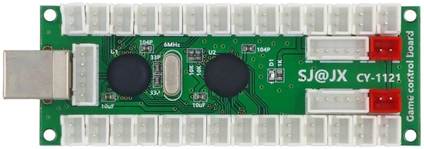
In order for FACP Connect is to allow communication between a third-party electronic safety system and EVAC Control, the application takes advantage of affordable and accessible hardware technologies. This technology comes in the form of USB-enabled DIY game control boards that can be found on various ecommerce websites for relatively cheap prices. In order for FACP Connect to function, one of these boards must be connected to the system to which you are currently installing FACP Connect.
An example of such a board is shown below:
Downloading & Installing FACP Connect
FACP Connect is available for download from the Slender Tech Solutions website at https://sts.slenderstudios.com/resources/apps.htm. In the right-most column of that webpage, scroll down until you see a green download button and click it to download the setup executable for FACP Connect. If the setup file is reported by your browser or Windows SmartScreen to be malicious, choose to keep the file and/or run the file regardless. If you do not choose to do this, the file may be deleted and you will not be able to install FACP Connect on your computer. FACP Connect is developed and maintained by Connor Bosler, also the creator of Slender Studios, the Slender Tech YouTube channel, the Slender Tech Solutions website, all files downloadable from it, and this documentation. He (I) maintain(s) these projects free of charge and for the betterment of the fire alarm and emergency alert systems community. None of the files downloadable from sts.slenderstudios.com will ever be malicious. Once the setup executable is downloaded to your computer, run it and follow all instructions as necessary. This will install FACP Connect successfully.
How to Use FACP Connect
Interface & Functionality Overview
FACP Connect is a console/terminal application, so the interface is simple yet very straightforward.
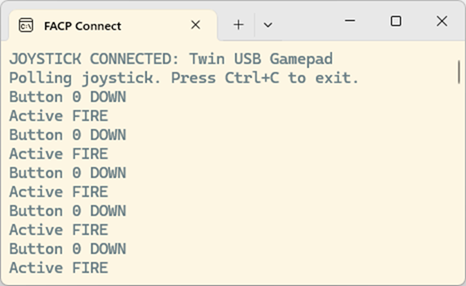
An example is shown above.
When the program first starts up, it will attempt to connect to EVAC Control. If it is unsuccessful, it will display the following message:
|
ERROR: Could not connect to
the EVAC Control application. Please make sure that EVAC control is installed
and running, then restart this app and try again. Press any key to exit... |
If you still wish to connect FACP Connect to EVAC Control after receiving this error, you should close the window, make sure that EVAC Control is open, running, and connected to Voicemeeter, and then reopen FACP Connect.
Once FACP Connect is
successfully connected to EVAC Control,
it will search your computer for any gamepad or joystick devices. It will
connect the first one it
finds. This behavior is not configurable.
If it is unsuccessful at finding a joystick or gamepad, it will display the
following message:
|
No joystick found. Press any key to exit... |
If you still wish to connect FACP Connect to EVAC Control after receiving this error, you should close the window, make sure that the joystick or gamepad you will be connecting to your third-party fire alarm or other emergency alert system is connected to your computer and recognized by Windows, and then reopen FACP Connect.
When FACP Connect has found and connected to a gamepad or joystick, it will display the following message, where <DEVICE TYPE> would be replaced with either gamepad or joystick (depending upon the actual type of connected device) and <Name> would be replaced with the actual name of the connected device:
|
<DEVICE TYPE> CONNECTED:
<Name> Polling joystick. Press Ctrl+C to exit. |
At this point, if you wish to exit FACP Connect, you can press key combination Ctrl + C. You can do this to exit the application at any time.
In the Event of an Alarm Condition
Now that a device is connected to FACP Connect, the application will begin monitoring Buttons 0, 1, 2, 3, 4, and 5 on the device board, each corresponding to the six emergency event condition types listed in order in EVAC Control. For example, if Button 0�s connection is shorted on the board, a fire emergency event will register in EVAC Control. If Button 1 is shorted, a carbon monoxide emergency will be triggered. Both of these events would be logged to the console window as:
|
Button 0 DOWN Active FIRE |
and
|
Button 1 DOWN Active CO |
respectively.
All events registered in FACP Connect such as these will also be communicated to EVAC Control accordingly.
When a button is no longer shorted, it will register as a cleared emergency and will be logged to the console. An example is shown below:
|
Button 0 UP Cleared FIRE |
How to Use a USB-Enabled Gamepad or Joystick Board (in Conjunction with FACP Connect)
In order for FACP Connect is to allow communication between a third-party electronic safety system and EVAC Control, the application takes advantage of affordable and accessible hardware technologies. This technology comes in the form of USB-enabled DIY game control boards that can be found on various ecommerce websites for relatively cheap prices. In order for FACP Connect to function, one of these boards must be connected to the system to which you are currently installing FACP Connect.
Example Board Layout & Overview
USB Out �Player
1� Side
Using the example board from earlier, let�s
label buttons 0-5 for all six emergency conditions available in EVAC Control.
Unused 0: Fire 1: Carbon
Monoxide 2: General
Emergency 3: Severe
Weather 4: Lockdown 5: Security





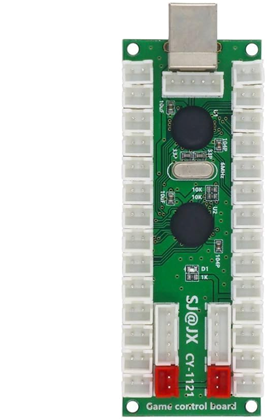
This specific example joystick board is dual-player, meaning it has duplicated button pins for use by a second player (if this were to be used as intended: a DIY joystick). However, it connects to a computer as two separate joysticks�one for player one and a second for player two. Since the player one device connects to the computer first, FACP Connect will also see this device first and therefore connect to it instead of player two�s device. Additionally, since EVAC Control only contains six types of emergency alarm conditions (as labeled in the above diagram), only buttons 0�5 are utilized by FACP Connect.
Plastic connectors that come with this specific board will plug into the sockets 0�5 on the board. These connectors transition to two wires and terminate in metal pin contacts, which can be wired to a relay on an emergency alert system that is closed under a certain emergency condition. One lead should be connected to the NO/Normally Open terminal of the relay and the other to the C/Common terminal. Polarity does not matter, as the end goal is simply to short the two pins/wires to make a connection.
Further tutorials regarding connecting a joystick or gamepad board to a fire alarm or other emergency alert system can be found on the Slender Tech Solutions website: https://sts.slenderstudios.com/resources/tuts.htm.
Feedback & Tutorials
Have any questions, comments, concerns, or suggestions regarding FACP Connect? Submit them to the FACP Connect YouTrack project at https://slenderstudios.youtrack.cloud/newIssue. If you aren�t comfortable using YouTrack, you can always contact us directly using our email address: [email protected].
If you are looking for tutorials on setting up your own audio distribution or mass notification system, please visit https://sts.slenderstudios.com/resources/tuts.htm.